
Appearance
Legal documents
Legal documents are the policies, terms, agreements, and similar content that ClauseWatcher checks and monitors.
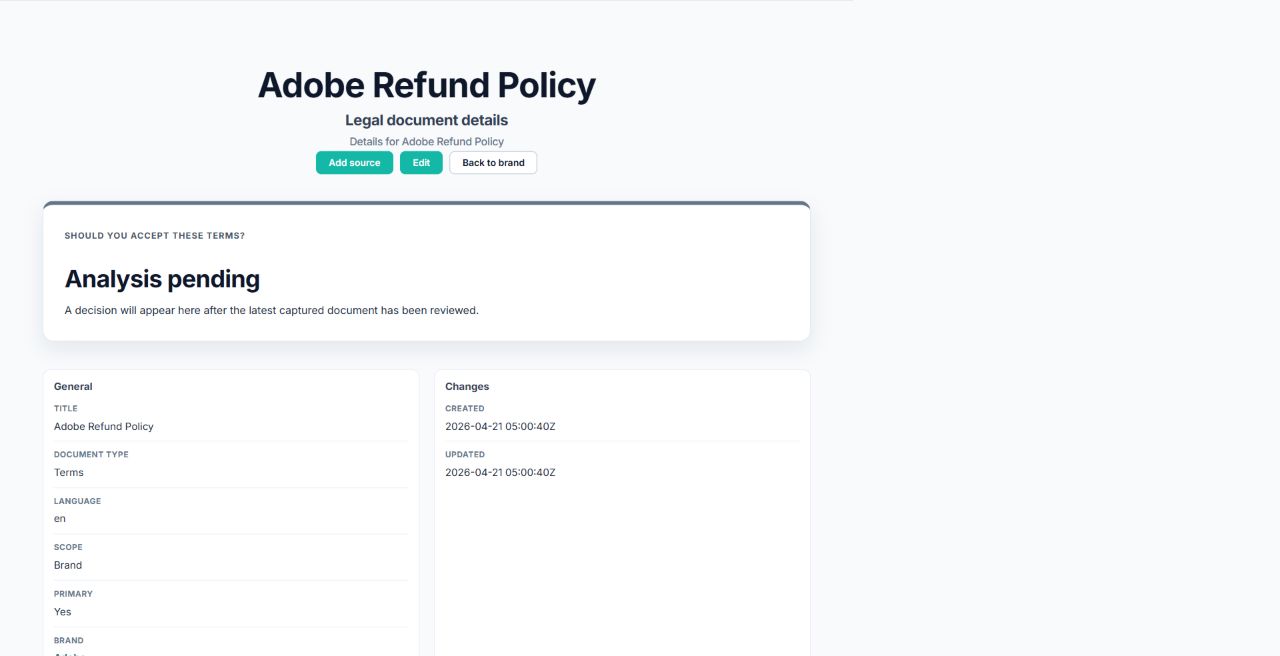
Choose the document scope
- Brand scope: the document applies to the organization generally.
- Product scope: the document applies to a particular product or service.
The scope determines where the document appears and forms part of its app URL.
Add a legal document
- Open a brand or product.
- Select Add legal document.
- Enter a title and unique slug.
- Select the document type.
- Enter the language code.
- Select brand or product scope and confirm the related brand/product.
- Enable Primary if this is the principal document of its type at that scope.
- Optionally add notes.
- Save.
Edit document details
Open the document and select Edit. You can update the title, slug, type, language, scope, primary status, and notes. Moving the document between scopes or changing a slug changes its app URL.
Add a source
A source tells ClauseWatcher where the document content comes from.
- Open the document.
- Select Add source.
- Enter one public HTTP or HTTPS URL, or upload one PDF.
- Select Add source.
For PDFs, use a .pdf file. In the quick-check workflow the maximum PDF size is 25 MB.
Work with sources
The source table shows source type, URL or filename, check frequency, last and next check times, and active status.
Administrators can select Start capture for a URL source to request a new capture immediately. PDF sources do not show that action.
Review versions
The versions table shows:
- version number;
- when the version was detected;
- published and effective dates when known;
- change type and status;
- artifact count;
- a shortened content hash used to identify the captured content.
The newest completed analysis appears above the source and version tables. See Understand results.